

DevOps Use Cases
Keboola CLI provides a Keboola project representation in a directory structure with JSON files. The —allow-target-env init mode enables you to apply a GitOps management framework to all your projects. Here we list several example use cases that are possible using this mode.
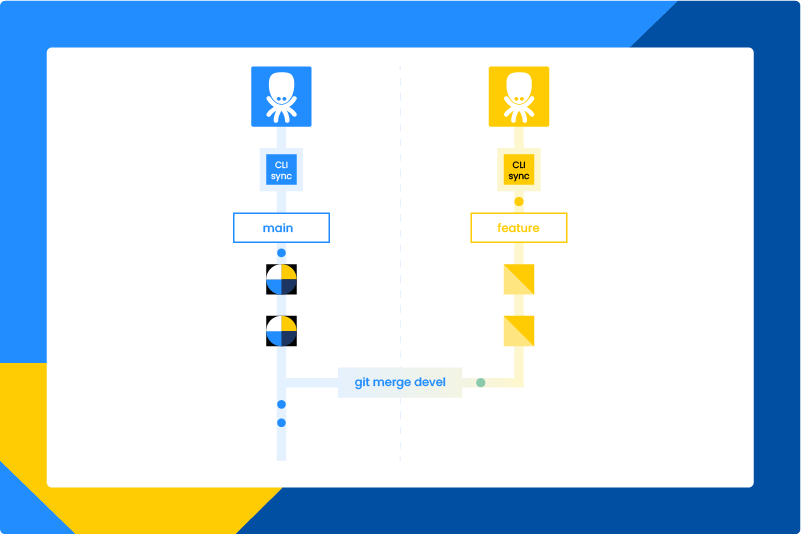
Git-Based Branch Management
Section titled “Git-Based Branch Management”By overriding the destination branch via the KBC_BRANCH_ID environment variable, you can
map each Git branch to a particular GUI Dev branch and then use Git to perform the merge or rebase even between different
branches.
Tutorial
Section titled “Tutorial”Initialization
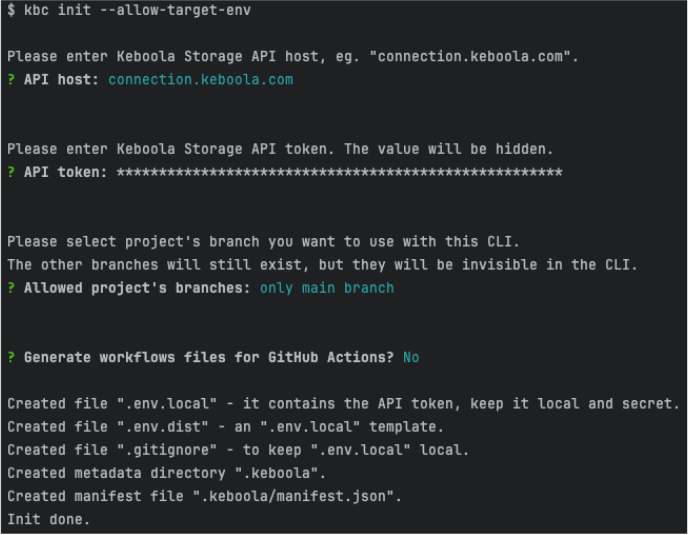
Section titled “Initialization”- First, let’s initialize a GitHub repository with a single main branch via the
kbc init --allow-target-env --skip-workflowscommand.
-
Fill in all parameters as usual.
-
Select only the main branch in this case.
- Initialize the GitHub repository using the
git initcommand.
Now, you can perform kbc push or kbc pull as normal, enabling you to sync the production development branch into main.
Creating a new branch
Section titled “Creating a new branch”Let’s create a new branch named new-feature.
git checkout -b new-featureNow, you can link the current branch to an actual Keboola development branch:
-
Create a new Keboola Dev Branch named
new-feature. The following command will create a remote branch off the production branch.Terminal window kbc remote create branch -n new-feature --output-json new_branch.json -
Obtain the newly created branch ID. The newly created branch ID can be found in the resulting file
new_branch.json.{"newBranchId": 123} -
Override the destination branch by setting the
KBC_BRANCH_IDenvironment variable.Terminal window export KBC_BRANCH_ID=123 -
Run
kbc pushto synchronize the local changes.
Any changes that you perform in the remote branch will be now synchronized back using the kbc pull command as long as
the KBC_BRANCH_ID variable is set.
Merging the changes
Section titled “Merging the changes”Once you are ready, you can commit the changes and compare to the main branch and eventually merge the new branch to your main.
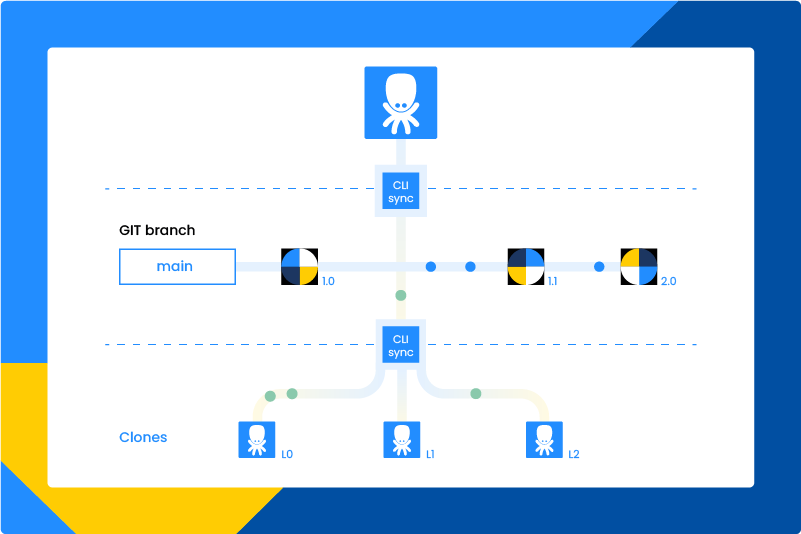
Deployment to Multiple Projects
Section titled “Deployment to Multiple Projects”By using the kbc init --allow-target-env mode, you can override the destination project. This is, for instance, leveraged in
the Dev/Prod Manager example use case. You can use this, for instance, to distribute a single project (as a
“template”) into multiple ones to start from.
Tutorial
Section titled “Tutorial”- First, let’s create a GitHub repository with a single main branch via the
kbc init --allow-target-env --skip-workflowscommand:
-
Fill in all parameters as usual.
-
Select only the main branch in this case.
-
Obtain the main branch ID:
To get the destination project main branch ID, you can use the List Branches API call and search for a branch named
main.Alternatively, from any component configuration, go to the Developer Tools (
F12in Chrome) and search for any underlying API call, e.g.,versions. You will see the branch ID in the URL ( xxx/branch/{BRANCH_ID}/xx).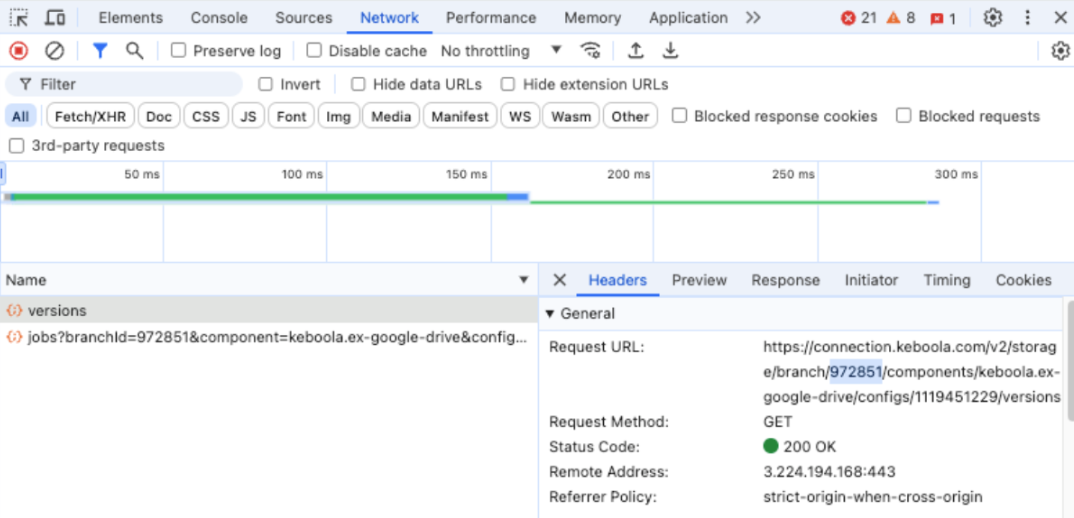
Now you can perform
kbc pushand the project definition will be transferred into the main branch of the selected project. -
Change the destination project ID and its main branch:
export KBC_PROJECT_ID=1234export KBC_BRANCH_ID=972851Multi-Stage (and Multi-Project) Environment Management
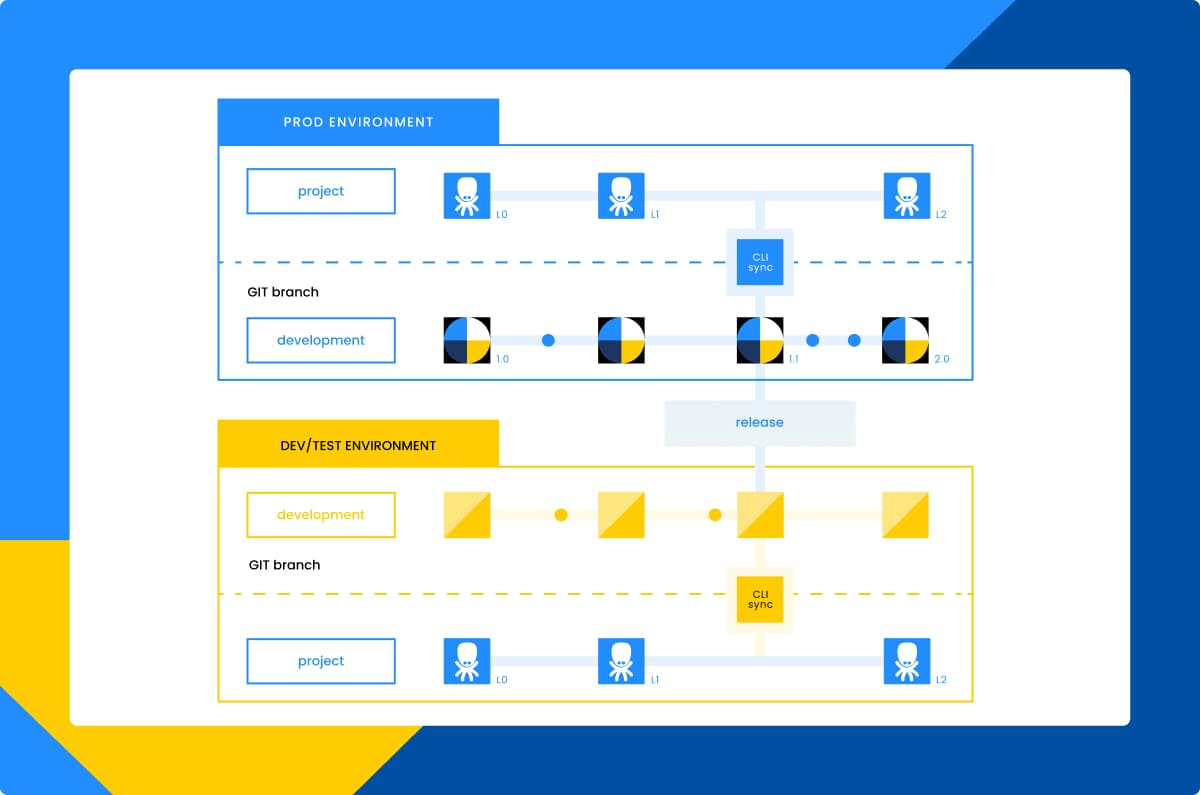
Section titled “Multi-Stage (and Multi-Project) Environment Management”Keboola’s native branching environment is typically sufficient for small to medium projects. However, in an enterprise setup, it may be necessary to have completely separate environments where both data and data pipeline definitions (code) are isolated. In such setups, administrators may need to define complex “branch protection” rules to closely control who can release new features into the production environment, as well as how and when these releases occur. In the software engineering world, this is often achieved with version control systems like Git.
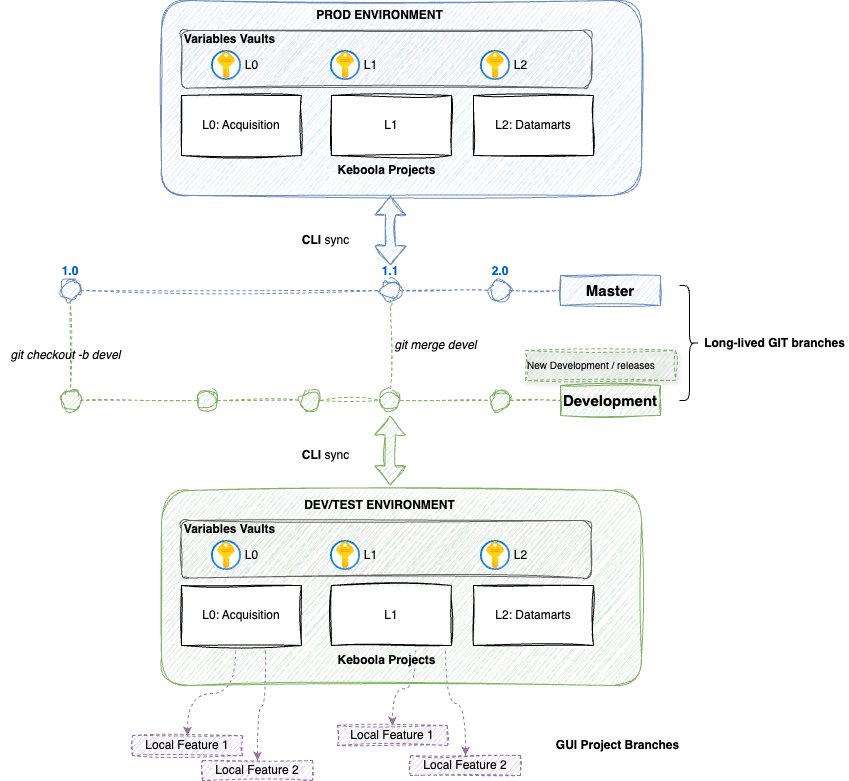
Thanks to Keboola’s CLI functionality, it is possible to define and synchronize separate environments, including the ones with a multi-project architecture setup, entirely via Git. This gives users the freedom to establish deployment rules according to their needs and allows for the testing of entire pipelines across multiple projects in completely isolated environments.
High-Level Workflow
Section titled “High-Level Workflow”To implement the above suggested setup, we need the following tools:
- Keboola CLI: sync project representations with an enabled overridden target environment
- Keboola Variables Vault: a feature that allows users to define variables and secrets on a project level and reference them in configurations
- GitHub & Git Actions: a versioning system to hold the project representations and define deployment rules and validations
We have prepared a sample Streamlit application that can be deployed as a Data App in the Keboola environment to assist with the initialization process.
This application includes GitHub actions that allow you to manage this scenario. It is expected that users will modify this flow to their needs.
To learn about the full use case, please refer to this blog post, where we describe the workflow in depth.
UI-Only Sync Workflow
Section titled “UI-Only Sync Workflow”When working in a purely UI-based workflow where all changes are made in the Keboola user interface and no local development occurs in the Git repository, you may encounter rename conflicts during pull operations.
Rename Conflicts
Section titled “Rename Conflicts”Rename conflicts occur when configurations are renamed in a chain. For example:
- Configuration A is renamed to B in the UI
- Configuration C is renamed to A in the UI
When pulling these changes, the standard kbc pull command will fail because it tries to rename C to A, but A still exists (it hasn’t been renamed to B yet in the local operation order).
Using —cleanup-rename-conflicts
Section titled “Using —cleanup-rename-conflicts”For UI-only workflows, use the --cleanup-rename-conflicts flag:
kbc pull --cleanup-rename-conflictsThis flag enables cleanup mode, which:
- Detects when a rename destination already exists
- Removes the conflicting destination
- Proceeds with the rename operation
This is safe for UI-only workflows because there are no uncommitted local changes that could be lost.
When NOT to Use This Flag
Section titled “When NOT to Use This Flag”Do not use --cleanup-rename-conflicts if:
- You are making local changes to configurations in your Git repository
- You are following a Git-based development workflow
- You have uncommitted local modifications
For Git-based development workflows, standard kbc pull and kbc push operations handle renames correctly without requiring cleanup mode.